


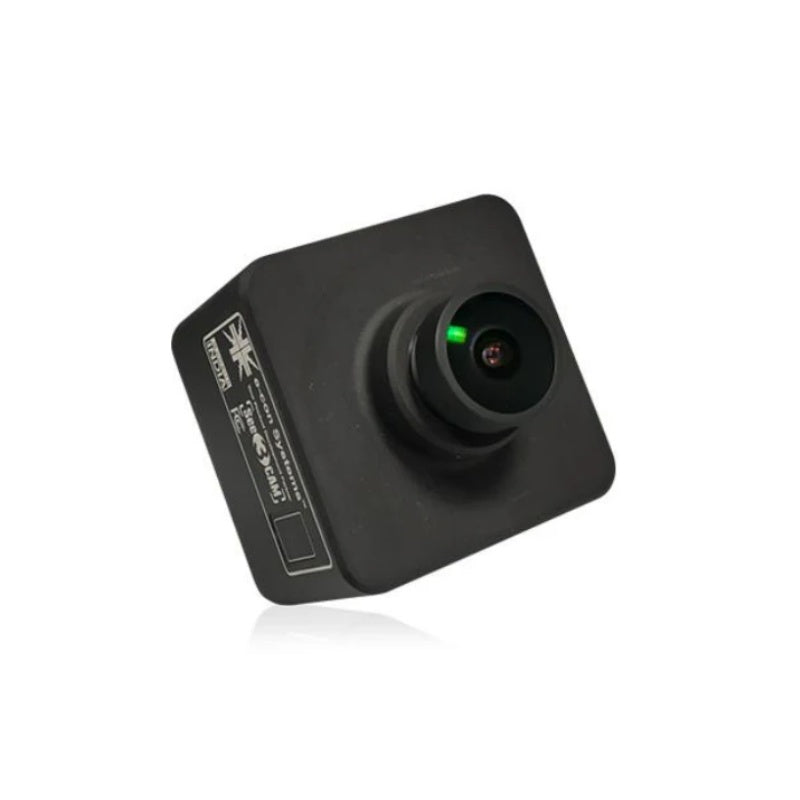

Add Video Feedback to Your Golf Practice
Choose a view and a supported workflow
Decide whether you want face-on, down-the-line or another supported view, then check camera placement and lens coverage. Trackman, Uneekor and Carl’s Place camera products can serve different ecosystems. Confirm the software that receives and displays the video before choosing hardware.
Plan lighting and computer connections
High-speed video needs a suitable lighting and exposure setup. Check the camera’s required USB connection, cable limitations and computer specifications. A lens listing is an accessory rather than a complete camera, and an analysis bundle may include additional devices that should be compared separately.
Choose the camera view before the camera position
For a face-on or down-the-line view, identify what you need to see at address, impact and the finish. Check the camera’s supported distance, mounting arrangement and capture workflow before choosing a spot. Keep that view distinct from a launch monitor’s internal impact camera: buying ball-and-club tracking does not automatically supply a full-body swing-replay system.
Explore Related Golf Equipment
- Golf Simulator Computers
- Uneekor Golf Simulator Equipment
- Trackman Golf Launch Monitors
- Golf Simulator Accessories
- Golf Simulator Touch Screen Monitors
Frequently Asked Questions
Is a swing camera a launch monitor?
No. A camera records video for a supported analysis workflow. Shot-tracking measurements come from the devices and software designed to provide them.
Can any USB camera work with my simulator software?
Do not assume so. Verify the exact camera, driver and software compatibility.
Does a zoom lens listing include the camera?
Not unless the listing says it does. Check whether you are purchasing a lens, a camera or a complete bundle.